
Execute Pipeline Activity In ADF is part of ADF orchestration. These activities control branching, looping, waiting, validation, metadata inspection, child pipeline calls, and external service integration.
This post is part of my Azure Data Factory tutorial notes. The goal is to turn the lesson into a practical blog reference: what the feature does, where it fits in an ADF project, what to configure, and what to check before relying on it.
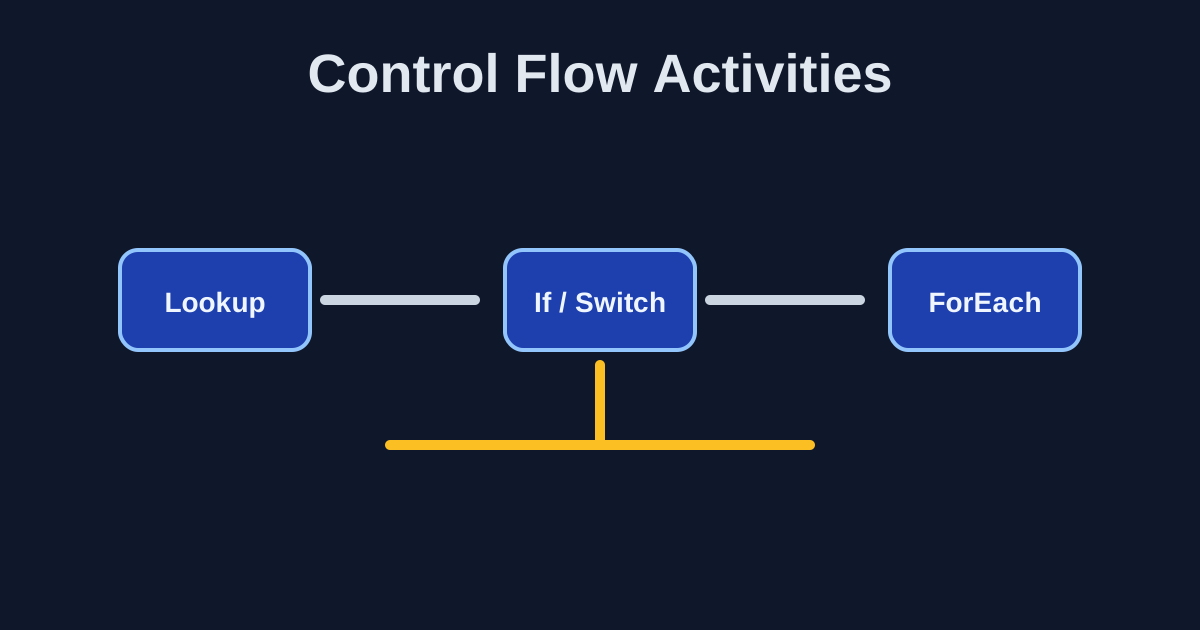 Azure Data Factory control flow activities
Where This Fits
Azure Data Factory is an orchestration and data integration service. A typical ADF solution uses linked services for connections, datasets for data shape and location, pipelines for orchestration, activities for work, triggers for scheduling or events, and monitoring for operational visibility.
Execute Pipeline Activity In ADF fits into that model as a focused building block. It should be understood not only as a screen in the Azure portal, but as a design decision inside the larger pipeline lifecycle.
Key Ideas
- Design orchestration before adding many activities.
- Keep each branch easy to explain and easy to retry.
- Use activity output JSON carefully when passing values downstream.
- Name activities clearly because monitoring depends on readable labels.
Practical Walkthrough
Start with a small factory or development environment. Keep the first version narrow: one source, one destination, one activity chain, and a clear success condition. This makes the behavior of Execute Pipeline Activity In ADF easier to see before it is hidden inside a larger production workflow.
Create a small pipeline that uses Execute Pipeline Activity In ADF, run it manually, inspect the activity output, and record the exact settings that made the run successful.
After the first run succeeds, inspect the run details. ADF usually gives useful output such as status, duration, input settings, output JSON, error messages, and integration runtime information. That output is often the fastest way to understand whether the feature is configured correctly.
Design Notes
ADF projects become hard to maintain when every value is typed directly into every activity. Use parameters for values that change, keep naming consistent, and avoid duplicating connection information. For production work, separate environments, avoid hard-coded secrets, and keep a clear path from development to deployment.
When this feature interacts with files or external systems, also think about retry behavior, partial failure, idempotency, and cleanup. A pipeline that works once in a demo can still fail in production if reruns create duplicate files, overwrite the wrong folder, or reuse stale activity output.
Validation Checklist
- The pipeline or data flow has a clear purpose and readable activity names.
- Connections, datasets, and parameters are tested with realistic values.
- Monitoring output shows the expected rows, files, branches, or status.
- Failure behavior is understood before the workflow is scheduled.
- Secrets and environment-specific values are not hard-coded.
Source
Based on my Notion lesson page: 31. Execute Pipeline Activity In ADF.