
Amazon EC2, short for Elastic Compute Cloud, is the AWS service used to create and manage virtual servers in the cloud. In a traditional data center, applications usually run on physical servers owned by the organization. In AWS, we rent virtual servers called EC2 instances, deploy applications on them, and pay for the compute capacity while those instances are running.
This post walks through the core ideas behind EC2: what an EC2 instance is, how to launch one, how to connect to it, how security groups control traffic, how public and private IP addresses work, and how user data, launch templates, and custom AMIs make EC2 setup repeatable.
Exploring EC2 Fundamentals
An EC2 instance is a virtual server in AWS. The EC2 service is the control plane we use to provision, start, stop, terminate, connect to, and manage those virtual servers.
At a high level:
- EC2 instance — A virtual server running in AWS.
- EC2 service — The AWS service used to create and manage EC2 instances.
- Billing model — EC2 instances are billed by usage, commonly by the second depending on the operating system and pricing model.
The most important thing to remember is that EC2 gives us raw compute capacity. It is flexible, but that flexibility means we are responsible for choosing the right machine size, operating system, storage, network access, and security rules.
Important Features of EC2
EC2 provides much more than a button to create virtual machines. It gives us a full set of capabilities around compute operations:
| Feature | What it means |
|---|---|
| Instance lifecycle management | Create, start, stop, reboot, and terminate virtual servers |
| Load balancing | Distribute traffic across multiple EC2 instances |
| Auto Scaling | Automatically increase or decrease instance count based on load |
| Storage attachment | Attach root and additional EBS volumes to instances |
| Network connectivity | Place instances inside VPCs, subnets, security groups, and public/private networks |
| Automation | Bootstrap instances using user data, launch templates, and custom AMIs |
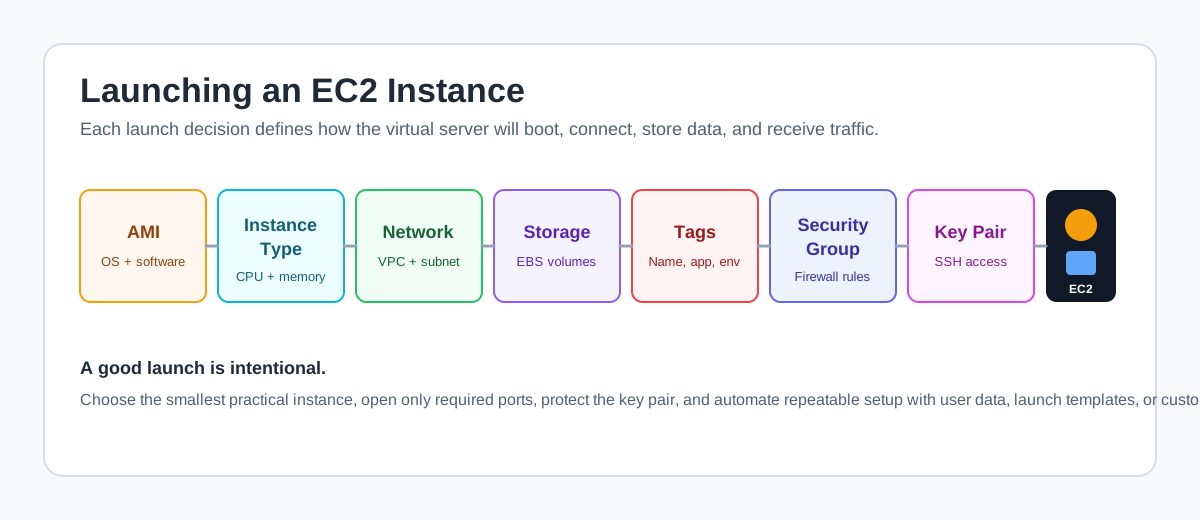 The major decisions involved while launching an EC2 instance
Creating Our First EC2 Instance
To create an EC2 instance, open the AWS Console, search for EC2, and go to the EC2 dashboard. From there, click Launch instance. AWS then asks for a set of launch configuration choices.
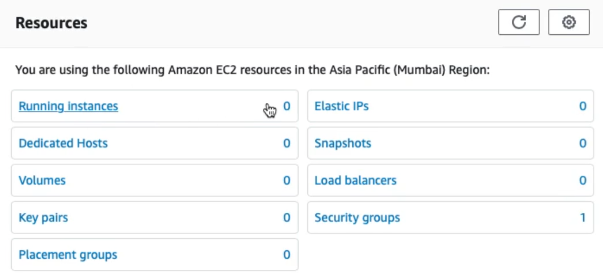 The EC2 dashboard from the original Notion notes
Step 1: Choose an AMI
An Amazon Machine Image (AMI) is a template that contains the software configuration needed to boot an instance. It usually includes:
- An operating system
- Optional application server software
- Optional pre-installed applications
- Root volume configuration
For a first instance, an AWS-provided Linux AMI such as Amazon Linux is a common choice because it is simple, well-supported, and often eligible for free-tier usage depending on account and instance type.
Step 2: Choose an Instance Type
The instance type decides how powerful the virtual server is. Instance types come with different combinations of:
- vCPU
- Memory
- Storage performance
- Network performance
- Processor architecture
For example, t2.micro can be read like this:
| Part | Meaning |
|---|---|
t | Instance family |
2 | Generation |
micro | Size |
As the size increases from nano to micro, small, medium, large, and beyond, the compute, memory, and networking capacity generally increase too.
Common instance families include:
- General purpose — Balanced compute, memory, and network
- Compute optimized — CPU-heavy workloads
- Memory optimized — In-memory databases and large memory workloads
- Storage optimized — High disk throughput workloads
- Accelerated/GPU instances — Machine learning, graphics, and specialized compute
Choosing the right instance type is one of the most important EC2 design decisions. Start small for experiments, monitor usage, and resize when the workload tells you to.
Step 3: Configure Instance Details
This is where we decide where the instance lives and how it behaves. Important choices include:
- VPC
- Subnet
- Availability Zone
- Public IP assignment
- IAM role
- User data
The subnet choice indirectly decides the Availability Zone. For example, if a subnet belongs to us-east-1a, launching into that subnet places the instance in that AZ.
Step 4: Add Storage
An EC2 instance needs storage for the operating system and applications. The root volume is commonly an EBS volume. We can also attach additional volumes when launching the instance or later.
Typical storage choices include:
- Root EBS volume size
- Volume type
- Encryption
- Delete-on-termination behavior
- Additional data volumes
Step 5: Add Tags
Tags are key-value pairs attached to AWS resources. They look simple, but they are extremely useful for operations, billing, and organization.
Examples:
| Key | Value |
|---|---|
Name | webserver-dev |
Environment | dev |
Project | aws-learning |
Owner | data-engineering |
Tags help answer practical questions such as: Who owns this instance? Is it production or development? Which project should be charged for it?
Step 6: Configure a Security Group
A security group is a virtual firewall attached to an AWS resource. For EC2, it controls which inbound and outbound traffic is allowed.
For a basic Linux web server, we may allow:
- SSH on port
22 - HTTP on port
80 - HTTPS on port
443, if TLS is configured
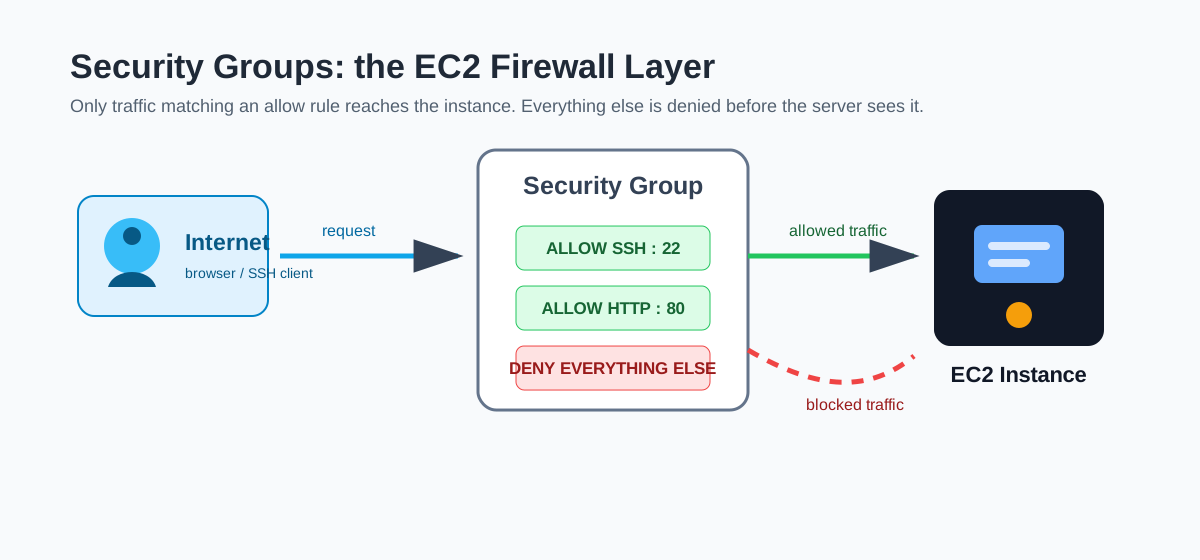 Security groups allow only the traffic that matches configured rules
Step 7: Review and Launch
After reviewing the configuration, AWS asks us to select or create a key pair. A key pair is used for secure SSH access:
- AWS stores the public key.
- We download and protect the private key.
Anyone with the private key can potentially access the instance, so it should be stored securely and never committed to Git.
Connecting to an EC2 Instance
After the instance is running, select it in the EC2 console and click Connect. AWS provides multiple ways to connect:
- EC2 Instance Connect — Browser-based SSH connection
- Standalone SSH client — Local terminal or SSH client
- Session Manager — AWS Systems Manager based access, useful for controlled environments
For learning and quick experiments, EC2 Instance Connect is often the easiest. Once connected, we can run normal Linux commands:
1
2
3
whoami
hostname
python --version
Instance Lifecycle Actions
EC2 instances can move through different states:
| Action | What it does |
|---|---|
| Start | Boots a stopped instance |
| Stop | Shuts down the instance but keeps attached EBS volumes |
| Reboot | Restarts the operating system |
| Terminate | Deletes the instance permanently |
The difference between stop and terminate is critical. A stopped instance can be started again. A terminated instance cannot be reused.
Stop an instance when you want to pause compute usage. Terminate it only when you are finished with that server.
Installing an Apache HTTP Web Server
Suppose we want to install Apache on an Amazon Linux EC2 instance. After connecting to the instance, become root and install the web server:
1
2
3
4
5
sudo su
yum update -y
yum install httpd -y
systemctl start httpd
systemctl enable httpd
The systemctl start httpd command starts the web server immediately. The systemctl enable httpd command makes sure Apache starts automatically after a reboot.
At this point, if we open the instance public IP in a browser, it might still fail. The reason is usually the security group. HTTP traffic uses port 80, so the security group must allow inbound HTTP traffic.
To fix that:
- Open the instance details.
- Click the attached security group.
- Edit inbound rules.
- Add an HTTP rule on port
80. - Allow the appropriate source, such as
0.0.0.0/0for a public demo.
For real systems, avoid opening more traffic than necessary.
Customizing the Web Page
Apache serves content from /var/www/html. We can replace the default page with our own text:
1
2
sudo su
echo "Getting started with AWS" > /var/www/html/index.html
Now refreshing the public IP in the browser should show the custom message.
EC2 Instance Metadata and Dynamic Data
Every EC2 instance can access metadata about itself through the link-local address:
1
http://169.254.169.254/latest/meta-data/
This address works only from inside the EC2 instance. It can return details such as:
- AMI ID
- Instance ID
- Instance type
- Hostname
- Security groups
- Public and private IP addresses
Example commands:
1
2
3
4
5
curl http://169.254.169.254/latest/meta-data/
curl http://169.254.169.254/latest/meta-data/ami-id
curl http://169.254.169.254/latest/meta-data/hostname
curl http://169.254.169.254/latest/meta-data/instance-id
curl http://169.254.169.254/latest/meta-data/instance-type
EC2 also exposes dynamic instance identity data:
1
2
3
curl http://169.254.169.254/latest/dynamic/
curl http://169.254.169.254/latest/dynamic/instance-identity/
curl http://169.254.169.254/latest/dynamic/instance-identity/document
We can even publish that instance identity document through Apache:
1
curl -s http://169.254.169.254/latest/dynamic/instance-identity/document > /var/www/html/index.html
After refreshing the browser, the page will show JSON details about the instance.
For production workloads, be careful about exposing metadata or identity details publicly. It is useful for learning, but it can leak information if published without thought.
Understanding Security Groups
Security groups are one of the most important EC2 security controls. They act like virtual firewalls for AWS resources.
Important characteristics:
- Security groups contain allow rules only.
- If traffic is not explicitly allowed, it is denied.
- Inbound and outbound rules are configured separately.
- Multiple security groups can be attached to one instance.
- Changes take effect immediately.
- Security groups are stateful.
Stateful means:
- If an inbound request is allowed, the response is automatically allowed out.
- If an outbound request is allowed, the response is automatically allowed back in.
This is why security groups are easier to work with than stateless firewalls in many beginner scenarios.
Public and Private IP Addresses
An EC2 instance always has a private IP address inside the VPC. A public IP address is optional and allows access from the internet.
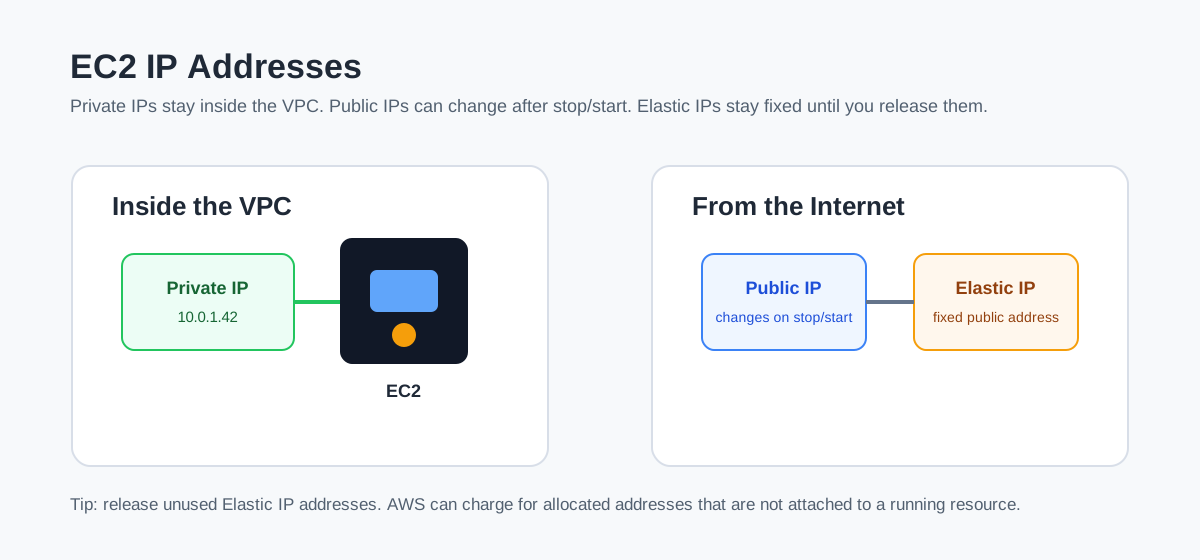 Private IP, public IP, and Elastic IP behavior for EC2 instances
Private IP Address
A private IP address is used inside the VPC. It is not directly reachable from the public internet. Two separate private networks can reuse the same private IP ranges because those addresses are meaningful only inside their own networks.
Public IP Address
A public IP address is internet-addressable. If an instance has a public IP and the security group allows traffic, users can reach it from the internet.
One important behavior:
- If an EC2 instance is rebooted, the public IP usually remains the same.
- If an EC2 instance is stopped and started, the public IP can change.
The private IP remains stable while the network interface is retained.
Understanding Elastic IP Addresses
An Elastic IP address is a static public IPv4 address that can be associated with an EC2 instance or network interface. It solves the problem of a changing public IP after stop/start.
Common use case:
- A single EC2 instance needs a stable public address.
- DNS or external clients depend on that address.
- We want to move the address to another instance during recovery.
To create one:
- Open EC2.
- Go to Elastic IPs under Network & Security.
- Click Allocate Elastic IP address.
- Select the new Elastic IP.
- Use Associate Elastic IP address.
- Attach it to the running EC2 instance.
Important notes:
- An Elastic IP can be moved from one instance to another in the same region.
- It remains allocated even after the instance is stopped.
- If we no longer need it, we should release it.
- AWS may charge for Elastic IP addresses that are allocated but not used correctly.
If you stop or terminate an EC2 instance, remember to review and release any Elastic IP address you no longer need.
Simplifying EC2 Setup
Manually launching an instance and installing software is fine for learning. For repeatable systems, we should automate.
Three common approaches are:
- User data
- Launch templates
- Custom AMIs
Bootstrapping with User Data
User data is a script that runs when an EC2 instance launches. This process is called bootstrapping.
Instead of connecting manually and typing setup commands, we can provide a script like this:
1
2
3
4
5
6
#!/bin/bash
yum update -y
yum install -y httpd
systemctl start httpd
systemctl enable httpd
curl -s http://169.254.169.254/latest/dynamic/instance-identity/document > /var/www/html/index.html
With this configured, the instance installs Apache and publishes the instance identity document automatically during launch.
From inside the instance, we can inspect configured user data:
1
curl http://169.254.169.254/latest/user-data/
Launch Templates
A launch template stores instance launch settings so we do not need to repeatedly configure the same options.
It can include:
- AMI
- Instance type
- Key pair
- Security groups
- Network settings
- Storage settings
- Tags
- User data
Launch templates are useful when we repeatedly create the same kind of server. They are also foundational for Auto Scaling groups.
We can create a launch template manually or create one from an existing EC2 instance. Launch templates can have multiple versions, which makes it possible to evolve the configuration safely over time.
Custom AMIs
User data is great, but it runs at boot time. If the script installs many packages or applies many patches, the instance takes longer to become ready.
A custom AMI solves this by baking common setup into the image ahead of time.
The pattern is:
- Launch an instance from a base AMI.
- Install patches, tools, agents, and application dependencies.
- Harden the image according to security standards.
- Stop the instance.
- Create an AMI from it.
- Launch future instances from the custom AMI.
This reduces launch time and helps enforce consistent corporate standards.
AMI Sources
AMIs can come from different places:
| Source | Description |
|---|---|
| AWS-provided AMIs | Official images maintained by AWS |
| AWS Marketplace AMIs | Third-party images, sometimes with hourly software charges |
| Custom AMIs | Images created and maintained by us |
AMIs are region-specific and stored by AWS using S3-backed infrastructure. For disaster recovery, important AMIs should be copied to other regions when needed.
EC2 Security: Key Pairs
A key pair contains:
- A public key stored by AWS
- A private key file stored by us
The private key is used when connecting through SSH. On Linux and macOS, that usually means using the ssh command. On Windows, some workflows use PuTTY and may require converting the key into .ppk format.
Key pair best practices:
- Store private keys securely.
- Do not share private keys.
- Do not commit keys to Git.
- Use IAM and Systems Manager Session Manager where appropriate for stronger access control.
Important EC2 Scenarios
| Scenario | Solution |
|---|---|
| Identify instances by project, environment, or billing group | Add tags such as Project, Environment, and Owner |
| Change instance type | Stop the instance, change the instance type, then start it again |
| Prevent accidental termination | Enable termination protection |
| Update an instance to a newer patched image | Launch a new instance from an updated AMI |
| Create EC2 instances from on-premises VM images | Use VM Import/Export and manage licensing requirements |
| Change security group rules | Update the security group; changes apply immediately |
| Timeout while accessing an instance | Check security group inbound rules, subnet routing, and public IP settings |
| User data makes launches slow | Create a custom AMI with software pre-installed |
| Stopped instance billing | No compute charge for stopped instance, but attached storage can still cost money |
Termination protection does not protect against every possible termination path, such as Auto Scaling group replacement or some spot instance behaviors. Treat it as one guardrail, not a complete safety system.
Choosing an Availability Zone
When launching an EC2 instance, we do not always directly choose an Availability Zone by name. Often, we choose a subnet, and the subnet belongs to a specific Availability Zone.
In a default VPC, AWS usually creates subnets across multiple Availability Zones in a region. If we want the instance in a particular AZ, we choose a subnet in that AZ.
This matters for:
- High availability design
- Latency between application components
- Placement of load balancers and databases
- Disaster tolerance inside a region
For production applications, avoid placing everything in a single Availability Zone. Spread workloads across multiple AZs when possible.
Summary
EC2 is one of the most important building blocks in AWS. It gives us flexible virtual servers, but it also asks us to make good decisions about instance size, AMI, storage, networking, access, and security.
| Concept | Why it matters |
|---|---|
| AMI | Defines the operating system and initial software |
| Instance type | Defines compute, memory, storage, and network capacity |
| Security group | Controls inbound and outbound traffic |
| Key pair | Enables secure SSH access |
| User data | Automates setup at launch |
| Launch template | Reuses launch settings |
| Custom AMI | Speeds up launches and standardizes server configuration |
| Elastic IP | Provides a stable public IP address |
Once these pieces make sense, EC2 becomes much less mysterious. It is simply a virtual server platform, surrounded by AWS-native controls for networking, identity, security, storage, automation, and scaling.
Source Notes
Based on my Notion notes: Getting up and running with Virtual Servers in AWS - EC2.